When you do an upgrade of MacOS, it can be hard to locate the download package as it caches to disk.
Sometimes you may want to see the progress of the download, the size of the file or just troubleshoot an issue with the upgrade process. The following steps show you what commands to run to identify the path of the installer.
Login to your Mac, open System Preferences, Software Update and start the update process
Launch the Terminal app and change to root by running sudo su and enter your local admin password
Maximise your Terminal to fit the screen. The next command needs as much screen real estate as possible
Once you are root, run fs_usage -f filesys . This will enumerate all active disk I/O on the system. Data will be printed to the console very quickly, so once you see something with a path containing InstallAssistant.pkg.partial you can press Ctrl+C to break
If you can see the entire path that references the InstallAssistant.pkg, then all good, jump to step 10. If not, do the following to locate the full path
With the part of the path that you can see, you should see a random string, that may look something like this puuz6c0epc7o0ozyovvi6tjxhzpf6uf04. Use the find command to locate the full path by running the following:
Note that we remove results from the search that result in “Operation not permitted” so that we can reduce search noise
After some time, we should see something like /private/var/folders/zz/zyxvpxvq6csfxvn_n00000s0000068/C/com.apple.SoftwareUpdate/swcdn.apple.com/content/downloads/00/60/071-05432-A_QOY2QE0UMR/puuz6c0epc7o0ozyovvi6tjxhzpf6uf04s/ returned, which is the path we are looking for
Now, if you cd to the folder above, you can monitor the download progress on disk with ls -lha
After the file has downloaded, it will be moved to /Applications/MacOS "version" install.app and will remain here until the installation has completed. If you want to take a copy of the package, copy it from this location before the install is complete
Activating an iPad with your MDM platform is usually a straight forward process.Your hardware vendor associates your device enrollment program (DEP) code with the device, your DEP platform tells your MDM that the device belongs to you and when you turn the device on for the first time, it phones home, gets directed to MDM, your configuration profiles are pushed and the iPad gets activated, enrolled and managed. Simple right?
Turns out, there is an odd thing that Apple does that may cause problems if you use a proxy or content gateway for accessing the internet when you do the initial activation.
Enter courier.push.apple.com. This is a placeholder DNS record, which is designed to assist with load balancing the activation process. As we’ll find out, the way this DNS record is used is not standard and it helps to understand how it works when troubleshooting activating a device behind a proxy.
So courier.push.apple.com is a CNAME for courier-push-apple.com.akadns.net . Let’s see where courier-push-apple.com.akadns.net goes.
PS C:\> Resolve-DnsName -Name courier-push-apple.com.akadns.net -DnsOnly

Name                        Type TTL   Section    PrimaryServer               NameAdministrator           SerialNumber
----                        ---- ---   -------    -------------               -----------------           ------------
akadns.net                  SOA  180   Authority  internal.akadns.net         hostmaster.akamai.com       1560251729
As we can see courier-push-apple.com.akadns.net does not resolve. It just returns the SOA record for the domain.
We can also confirm that this is not a geographical DNS inconsistency by querying alternate DNS servers in different parts of the world.
PS C:\> Resolve-DnsName -Name courier-push-apple.com.akadns.net -DnsOnly -Server 8.8.8.8

Name                        Type TTL   Section    PrimaryServer               NameAdministrator           SerialNumber
----                        ---- ---   -------    -------------               -----------------           ------------
akadns.net                  SOA  163   Authority  internal.akadns.net         hostmaster.akamai.com       1560251729

PS C:\> Resolve-DnsName -Name courier-push-apple.com.akadns.net -DnsOnly -Server 1.1.1.1

Name                        Type TTL   Section    PrimaryServer               NameAdministrator           SerialNumber
----                        ---- ---   -------    -------------               -----------------           ------------
akadns.net                  SOA  133   Authority  internal.akadns.net         hostmaster.akamai.com       1560251729

PS C:\> Resolve-DnsName -Name courier-push-apple.com.akadns.net -DnsOnly -Server 211.11.195.114

Name                        Type TTL   Section    PrimaryServer               NameAdministrator           SerialNumber
----                        ---- ---   -------    -------------               -----------------           ------------
akadns.net                  SOA  180   Authority  internal.akadns.net         hostmaster.akamai.com       1560251729

PS C:\> Resolve-DnsName -Name courier-push-apple.com.akadns.net -DnsOnly -Server 212.234.34.121

Name                        Type TTL   Section    PrimaryServer               NameAdministrator           SerialNumber
----                        ---- ---   -------    -------------               -----------------           ------------
akadns.net                  SOA  145   Authority  internal.akadns.net         hostmaster.akamai.com       1560251729

PS C:\> Resolve-DnsName -Name courier-push-apple.com.akadns.net -DnsOnly -Server 167.233.5.204

Name                        Type TTL   Section    PrimaryServer               NameAdministrator           SerialNumber
----                        ---- ---   -------    -------------               -----------------           ------------
akadns.net                  SOA  14    Authority  internal.akadns.net         hostmaster.akamai.com       1560251729
Google, Cloudflare as well as name servers in France, Germany and Korea all return an SOA for courier-push-apple.com.akadns.net
A quick google of this strange behavior reveals people resolving load balanced endpoints for courier-push-apple.com.akadns.net, namely 'x'.courier-push-apple.com.akadns.net, eg. 1.courier-push-apple.com.akadns.net , 2.courier-push-apple.com.akadns.net , 3.courier-push-apple.com.akadns.net etc.
After working with an extremely helpful engineer at Apple, it was determined that the load balancing for activating iPad’s is done on the device its self. Rather than DNS telling the device which endpoint to hit, the device prepends a number like '1' to the start of courier-push-apple.com.akadns.net to make it 1.courier-push-apple.com.akadns.net. When we look up these names, we get a much different result.
PS C:\> Resolve-DnsName -Name 1.courier-push-apple.com.akadns.net -DnsOnly

Name                           Type   TTL   Section    NameHost
----                           ----   ---   -------    --------
1.courier-push-apple.com.akadn CNAME  48    Answer     apac-au-courier-4.push-apple.com.akadns.net
s.net

Name       : apac-au-courier-4.push-apple.com.akadns.net
QueryType  : A
TTL        : 15
Section    : Answer
IP4Address : 17.57.145.37


Name       : apac-au-courier-4.push-apple.com.akadns.net
QueryType  : A
TTL        : 15
Section    : Answer
IP4Address : 17.57.145.36

PS C:\> Resolve-DnsName -Name 2.courier-push-apple.com.akadns.net -DnsOnly

Name                           Type   TTL   Section    NameHost
----                           ----   ---   -------    --------
2.courier-push-apple.com.akadn CNAME  60    Answer     apac-au-courier-4.push-apple.com.akadns.net
s.net

Name       : apac-au-courier-4.push-apple.com.akadns.net
QueryType  : A
TTL        : 60
Section    : Answer
IP4Address : 17.57.145.36


Name       : apac-au-courier-4.push-apple.com.akadns.net
QueryType  : A
TTL        : 60
Section    : Answer
IP4Address : 17.57.145.37

PS C:\> Resolve-DnsName -Name 3.courier-push-apple.com.akadns.net -DnsOnly

Name                           Type   TTL   Section    NameHost
----                           ----   ---   -------    --------
3.courier-push-apple.com.akadn CNAME  19    Answer     apac-au-courier-4.push-apple.com.akadns.net
s.net

Name       : apac-au-courier-4.push-apple.com.akadns.net
QueryType  : A
TTL        : 55
Section    : Answer
IP4Address : 17.57.145.36

Name       : apac-au-courier-4.push-apple.com.akadns.net
QueryType  : A
TTL        : 55
Section    : Answer
IP4Address : 17.57.145.37

PS C:\> Resolve-DnsName -Name 10.courier-push-apple.com.akadns.net -DnsOnly

Name                           Type   TTL   Section    NameHost
----                           ----   ---   -------    --------
10.courier-push-apple.com.akad CNAME  55    Answer     apac-au-courier-4.push-apple.com.akadns.net
ns.net

Name       : apac-au-courier-4.push-apple.com.akadns.net
QueryType  : A
TTL        : 55
Section    : Answer
IP4Address : 17.57.145.37

Name       : apac-au-courier-4.push-apple.com.akadns.net
QueryType  : A
TTL        : 55
Section    : Answer
IP4Address : 17.57.145.36
Here in Australia, the 'x'.courier-push-apple.com.akadns.net endpoints are a CNAME for an A record of apac-au-courier-4.push-apple.com.akadns.net which resolves to the same two load balanced IPs.
If however I query a name server in Germany, i get much different results.
PS C:\> Resolve-DnsName -Name 10.courier-push-apple.com.akadns.net -DnsOnly -Server 167.233.5.204

Name                           Type   TTL   Section    NameHost
----                           ----   ---   -------    --------
10.courier-push-apple.com.akad CNAME  5     Answer     eu-central-courier-4.push-apple.com.akadns.net
ns.net

Name       : eu-central-courier-4.push-apple.com.akadns.net
QueryType  : A
TTL        : 52
Section    : Answer
IP4Address : 17.57.146.165

Name       : eu-central-courier-4.push-apple.com.akadns.net
QueryType  : A
TTL        : 52
Section    : Answer
IP4Address : 17.57.146.169

Name       : eu-central-courier-4.push-apple.com.akadns.net
QueryType  : A
TTL        : 52
Section    : Answer
IP4Address : 17.57.146.164

Name       : eu-central-courier-4.push-apple.com.akadns.net
QueryType  : A
TTL        : 52
Section    : Answer
IP4Address : 17.57.146.167

Name       : eu-central-courier-4.push-apple.com.akadns.net
QueryType  : A
TTL        : 52
Section    : Answer
IP4Address : 17.57.146.166
This time we get 5 load balanced IPs in the Central Europe region. None of this is unusual of course and we expect this type of behavior from modern CDN’s. The slightly unusual thing here is that courier-push-apple.com.akadns.net resolves to nothing and this is by design. What is supposed to happen during device activation is that the device queries courier.push.apple.com, which returns courier-push-apple.com.akadns.net. The very act of receiving this name host as a response on the device tells the code that is running during activation to prepend a number to courier-push-apple.com.akadns.net, making it a valid DNS query. The device now hits 'x'.courier-push-apple.com.akadns.net and receives a response from a server which allows the normal activation process to occur.
Now to the point of the article. What happens if your device requests courier.push.apple.com via your proxy server and the proxy looks up courier.push.apple.com to make sure its valid before returning the response. The proxy sees that the resultant response of courier-push-apple.com.akadns.net resolves to nothing and squashes the response since it goes nowhere. The device now, sitting and waiting for a response, never gets it and decides that it wont proceed with activation, because no server is responding to it.
How do you fix this issue? Depends on your proxy. Depends on your environment. I don’t currently have an answer but I’m working on it and may do another blog post depending on the outcome. Hopefully if your stuck on this issue this clarifies things for you in regards to how iPads interact with courier.push.apple.com.
Side note: This article is helpful to review when looking at push notification firewall requirements.
For anyone wanting to test Office 365 and associated technologies, you can easily spin up a free trial, without a credit card for evaluating and seeing what 365 has to offer.
To get started, head over to outlook.com and create a free account. In this example, i’m using the address trial-365-2021@outlook.com
After you have your outlook.com account, browse to the following portal.office.com link which is the standing offer for a 30 day free trial of Office 365 E3 that includes 25 licenses.
Go through the wizard and fill in your details. You’ll need a legitimate phone number to verify you are a person and not a bot. You’ll create your business identity and proceed to create an admin login.
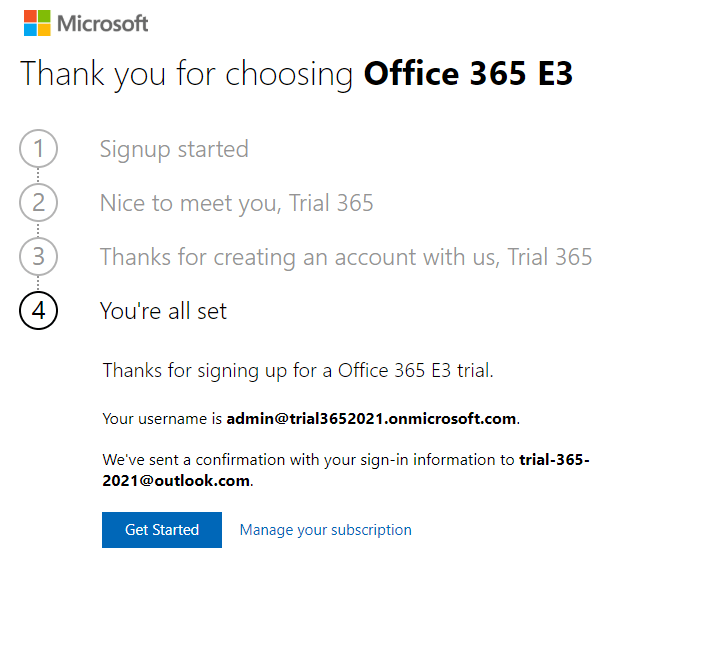
As you can see, my trial has been created and a confirmation email sent to my test outlook.com email address.
Now, you can jump over to https://portal.office.com/AdminPortal/ and login with your trial admin account. From here, jump into licenses and you’ll see your 30 days of Office 365 E3, which includes fully routable mail to your <domain>.onmicrosoft.com address.
From time to time, Microsoft offer other trials that you can add to your existing subscription. For example, at the moment, you can add PowerBI Premium or Defender for Office 365 trials. From the admin portal, browse to Billing –> Purchase Services –> Search –> ‘Trial’ and see what is available.
Now that you have your trial, you can test Exchange Online, SharePoint Online, Yammer, Teams and OneDrive – not to mention Azure AD and all the identity features that come along with it.
I was recently working on an issue where a monitoring system that runs on top of Server 2012 R2 was not able to establish a TLS handshake with web servers to check their availability. After some investigation and a ticket with Microsoft, it was determined that SCHANNEL on Server 2012 R2 does not support modern ciphers (a few posts on Stack Overflow confirms the same thing).
I find it crazy that Microsoft don’t support modern ciphers on server operating systems that are still in support (albeit extended support in this case). Surely as web servers start to upgrade their cipher suites, this is going to break stuff and everyone will be forced to upgrade to newer Server OS’s whether they are ready to or not.
The troubleshooting process with Microsoft involved the following steps:
Make sure that the TLS_ECDHE_RSA_WITH_AES_256_GCM_SHA384 cipher exists in the following registry locations:
Lastly, to make sure that a TLS 1.2 connection was established, the following registry keys needed to be set to enforce TLS 1.2 and disable older SSL and TLS protocols.
Once these registry keys were set and after a reboot, we could do some testing. The quickest way to determine what was happening was to run a packet capture and use Internet Explorer to browse to the site that was attempting to handshake using the TLS_ECDHE_RSA_WITH_AES_256_GCM_SHA384 cipher. Internet Explorer uses SCHANNEL for establishing TLS connections, so this is an easier test than mucking about with your app that also uses SCHANNEL. For the capture, I wrote a quick PowerShell script to use the built in netsh tool to capture packets and convert them to .pcapng for easy analysis using Wireshark.
# NetworkCapture.ps1

function startCapture {
    param ()
netsh trace start capture=yes report=disabled
}

function stopCapture {
    param ()
netsh trace stop
}

function convertCapture {
    param ()
# Setup function variables
$ETLToolZipPath = "$env:USERPROFILE\Downloads\etl2pcapng.zip"
$CapturePath = "$env:LOCALAPPDATA\Temp\NetTraces\NetTrace.etl"
$PCAPNGPath = "$env:LOCALAPPDATA\Temp\NetTraces\$(Get-Date -Format dd-MM-yyy-hhmm)_NetTrace.pcapng"
$ETLToolPath = "$env:USERPROFILE\Downloads\etl2pcapng\x64\"

if ($ETLToolPath) {
    Write-Host "Tool already exists, skipping..."
}
else {
# Get Windows ETL to PCAPNG tool
Invoke-WebRequest -Uri https://github.com/microsoft/etl2pcapng/releases/download/v1.4.0/etl2pcapng.zip -OutFile $ETLToolZipPath -UseBasicParsing

# Unzip the archive
Expand-Archive -Path $ETLToolZipPath -DestinationPath $env:USERPROFILE\Downloads\ -Force
}

# Run conversion
Set-Location -Path $ETLToolPath
.\etl2pcapng.exe $CapturePath $PCAPNGPath

Write-Output -InputObject "Capture has been converted and can be found here: $PCAPNGPath"
}
Here is the result from running the three functions listed in the above script. In between the startCapture and stopCapture functions, using Internet Explorer, I browsed to the site using the TLS_ECDHE_RSA_WITH_AES_256_GCM_SHA384 cipher.
PS C:\> startCapture
Trace configuration:
-------------------------------------------------------------------
Status:             Running
Trace File:         C:\Users\lab\AppData\Local\Temp\NetTraces\NetTrace.etl
Append:             Off
Circular:           On
Max Size:           250 MB
Report:             Disabled

PS C:\> stopCapture
Merging traces ... done
File location = C:\Users\lab\AppData\Local\Temp\NetTraces\NetTrace.etl
Tracing session was successfully stopped.

PS C:\> convertCapture
Tool already exists, skipping...
IF: medium=eth  ID=0    IfIndex=11
IF: medium=eth  ID=1    IfIndex=14
Converted 208 frames
Capture has been converted and can be found here: C:\Users\lab\AppData\Local\Temp\NetTraces\01-02-2021-0856_NetTrace.pcapng
The results of the trace confirmed that the TLS 1.2 hello was not successfully negotiated:
From here we see the client reaches out with the TLSv1.2 hello, but further down the server returns with “Handshake Failure”.
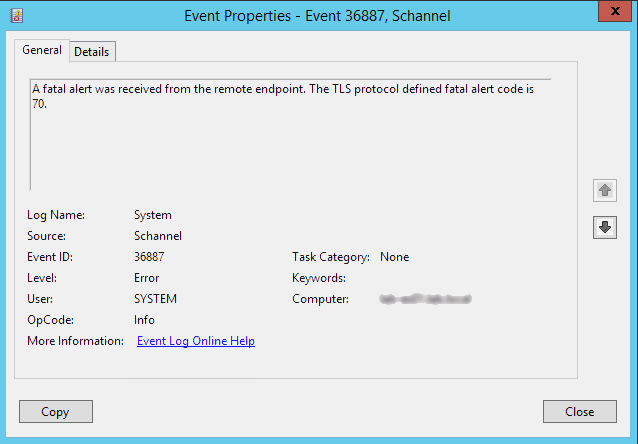
In the Windows system event log, we also see the following SCHANNEL error:
At this point I did some additional testing using newer operating systems. I already knew that the sites in question worked using Windows 10 but I wanted to confirm with Server 2016 and Sever 2019. As expected, SCHANNEL supports the TLS_ECDHE_RSA_WITH_AES_256_GCM_SHA384 cipher in newer versions of Windows and Internet Explorer is able to connect. The odd thing with Internet Explorer is that it throws the following error on Server 2012 R2, which is a bit misleading as RC4 is not in use or enabled:
This page can’t be displayed
Turn on TLS 1.0, TLS 1.1, and TLS 1.2 in Advanced settings and try connecting to https://site.example.com again. If this error persists, it is possible that this site uses an unsupported protocol or cipher suite such as RC4 (link for the details), which is not considered secure. Please contact your site administrator.
Another thing that proves the issue is with SCHANNEL is that Chromium on Server 2012 R2 works and you can access TLS_ECDHE_RSA_WITH_AES_256_GCM_SHA384 negotiated sites fine. This is because Chromium does not use SCHANNEL for establishing TLS.
Ultimately, after collecting some more logs and a bit of back and forward on email, Microsoft came back stating that TLS_ECDHE_RSA_WITH_AES_256_GCM_SHA384 is not supported on Windows Server 2012 R2 and that newer ciphers can be considered a windows ‘feature’ that has been introduced on newer operating systems only. They also provided this article as a reference.
If you come across this issue and your app uses SCHANNEL to establish TLS connections, you may be in for an OS upgrade.
I was going to write a blog about this, then I came across a Red Hat blog that has all this laid out nice. No point re-inventing the wheel. A while back, I was on the phone with a vendor at work, and the admin controlling the system I was facilitating access to typed !105 and I was like… OK, what just happened, then I realised that '!' has all sorts of cool functionality in regards to bash history. When you review your bash history by typing 'history' , you will notice each entry in your command history has a line number. To repeat a command from your history, you just type !<line #> and the command is repeated. I now use this all the time, especially for complex commands that take some work to get perfect, just bang# it and you’re good. Somehow it’s quite satisfying. Check out the other cool things you can do with ! in man history or by checking out the Red Hat blog above.
First post, so it’s not IT related. Short and sweet. Started a blog really so that I can document all the random stuff that I come across at work, as well as maybe feed something back to the community that I get so much from. Hope you enjoy reading!






 Willjessiam SysAdmin Blog
You must be logged in to post a comment.