Adobe Reader DC Hardening

Adobe provide a document for hardening Adobe Reader DC, but they aren’t really prescriptive about how to implement the maximum hardened state. Based on a number of web resources and the official Adobe guide, I have compiled a list of registry settings that you should enforce via GPO if you want Adobe Reader to be maximally hardened.

Depending on your organisation, you may want to enable certain features if there is a business case, like Adobe Sign or trusting certain sites or folder paths. This configuration is designed to permit the bare minimum required to effectively use Acrobat Reader to read PDFs without allowing executable content within PDFs or permitting online features.

Unfortunately Adobe do not provide recent Group Policy ADMX templates for all of these hardening settings, only for a subset, and many key settings are missing.
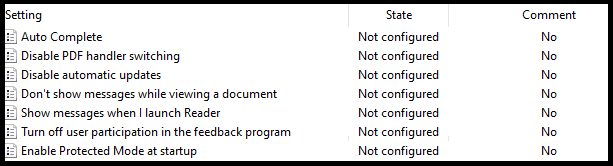
Adobe ADMX Template settings.

Hardening can be applied using the Adobe Configuration Wizard to deploy registry settings during install, however, my preferred option is to use Group Policy Preference registry settings to enforce configuration. Most settings can be configured in HKLM making them enforced where the user cannot change them. Two settings can only be configured in HKCU making them user changeable. Some settings can be configured in either HKLM or HKCU, in these cases, it is recommend to use only HKLM.

Important!

This blog post is refering to the 32-bit Adobe Reader, not the 64-bit Adobe Reader, which uses a different registry path for its settings. If using the 64-bit version, replace ‘Acrobat Reader’ with ‘Adobe Acrobat’, eg. HKLM\Software\Policies\Adobe\Acrobat Reader\DC\ with HKLM\Software\Policies\Adobe\Adobe Acrobat\DC\

Description Registry Key Data Type Default Value Setting Options Recommended Value
Enable Protected Mode which sandboxes Acrobat and Reader processes HKLM\Software\Policies\Adobe\Acrobat Reader\DC\FeatureLockDown\bProtectedMode REG_DWORD 1 0: Do not enable protected mode.
1: Do enable protected mode.
1
Specifies whether to enable Protected View for files from an untrusted location. HKLM\Software\Policies\Adobe\Acrobat Reader\DC\FeatureLockDown\iProtectedView REG_DWORD 0 0: (default) Disable Protected View.
1: (recommended) Enable Protected View for unsafe locations only.
2: Enable Protected View for all files regardless of origin.
2
Disables trusted files and folders and prevents users from specifying a privileged location for directories. HKLM\Software\Policies\Adobe\Acrobat Reader\DC\FeatureLockDown\bDisableTrustedFolders REG_DWORD 0 0: Files and folders can be trusted.
1: Disables and locks file and folder-based privileged locations.
1
Disables and locks the ability to specify host-based privileged locations (URLs). HKLM\Software\Policies\Adobe\Acrobat Reader\DC\FeatureLockDown\bDisableTrustedSites REG_DWORD 0 0: Enables host-based privileged locations.
1: Disables and locks host-based privileged locations.
1
Trusted sites includes Local Intranet zones. This setting makes IE trust operate as if they were privileged locations in Acrobat Reader. The feature can be disabled with this setting so that IE intranet zones are not trusted. HKLM\Software\Policies\Adobe\Acrobat Reader\DC\FeatureLockDown\bDisableOSTrustedSites REG_DWORD 0 0: Do automatically trust Windows OS zones.
1:Don't automatically trust Windows OS zones.
1
Specifies whether to allow or block all website hyperlinks in a PDF or use a custom setting. HKCU\Software\Policies\Adobe\Acrobat Reader\DC\TrustManager\cDefaultLaunchURLPerms\iURLPerms REG_DWORD 1 0: Custom Setting
1: Block all websites
2: Allow all websites
1
Locks down the Manage Internet Access settings so that users cannot change setting specified in iURLPerms HKLM\Software\Policies\Adobe\Acrobat Reader\DC\FeatureLockDown\cDefaultLaunchURLPerms\iUnknownURLPerms REG_DWORD 1 1: Always ask
2: Always allow
3: Always block
3
Windows OS application-level sandbox which is taken advantage of by Reader. Depends on protected mode being enabled. HKLM\Software\Policies\Adobe\Acrobat Reader\DC\FeatureLockDown\bEnableProtectedModeAppContainer REG_DWORD 0 0: Disable Microsoft's AppContainer sandbox
1: Enable Microsoft's AppContainer sandbox
1
Features are locked down to provide additional hardening. Blocks risky actions on all documents that are not specifically trusted. HKLM\Software\Policies\Adobe\Acrobat Reader\DC\FeatureLockDown\bEnhancedSecurityStandalone REG_DWORD 0 0: Disable enhanced security in the standalone application.
1: Enable enhanced security in the standalone application
1
Toggles enhanced security when the application is running in the browser. HKLM\Software\Policies\Adobe\Acrobat Reader\DC\FeatureLockDown\bEnhancedSecurityInBrowser REG_DWORD 0 0: Disable enhanced security in the browser.
1: Enable enhanced security in the browser.
1
Specifies whether to globally disable and lock JavaScript execution. HKLM\Software\Policies\Adobe\Acrobat Reader\DC\FeatureLockDown\bDisableJavaScript REG_DWORD 0 0 or null: Don't disable JS.
1: Disable and lock JS.
1
Enables enhanced security, Protected Mode, Protected View, and AppContainer for PDF attachments received in Outlook HKCU\Software\Adobe\Acrobat Reader\DC\TrustManager\bEnableAlwaysOutlookAttachmentProtectedView REG_DWORD 0 0: Enable Protected View for Outlook attachments.
1: Disable Protected View for Outlook attachments.
0
Reader allows the user to change the default PDF handler, including changing it to a prior version that is still installed on the system that may not have protected mode or protected view enabled. HKLM\Software\Policies\Adobe\Acrobat Reader\DC\FeatureLockDown\bDisablePDFHandlerSwitching REG_DWORD 0 0 (or null): Allow the user to change the default viewer.
1: Don't allow the user to change the default viewer.
1
Specifies whether to trust and render 3D content. HKLM\Software\Policies\Adobe\Acrobat Reader\DC\FeatureLockDown\bEnable3D REG_DWORD 0 0: Don't render 3D content.
1: Trust and render 3D files.
0
Specifies whether Flash content should be rendered in a PDF. HKLM\Software\Policies\Adobe\Acrobat Reader\DC\FeatureLockDown\bEnableFlash REG_DWORD 0 0: Flash content is rendered as an empty, white box and does not play.
1: Flash plays if there is a system player present. If a player is not found, then the user is prompted to download the latest version.
0
Toggles the Adobe Send and Track plugin for Outlook. Enables sending large files as public links through Outlook. The attached files are uploaded to Adobe Document Cloud and public links to the files are inserted in the email body. HKLM\Software\Policies\Adobe\Acrobat Reader\DC\FeatureLockDown\cCloud \bAdobeSendPluginToggle REG_DWORD 1 0: Enable Adobe Send and Track.
1: Disable Adobe Send and Track.
1
Disables Document Cloud service access except those features controlled by the other preferences. HKLM\Software\Policies\Adobe\Acrobat Reader\DC\FeatureLockDown\cServices\bToggleAdobeDocumentServices REG_DWORD 0 0: Enable Document Cloud services.
1: Disable Document Cloud services.
1
Specifies the default permissions for file types that aren't listed in the default or user-specified lists. HKLM\Software\Policies\Adobe\Acrobat Reader\DC\FeatureLockDown\cDefaultLaunchAttachmentPerms\iUnlistedAttachmentTypePerm REG_DWORD 1 0 or null: If a file with an unspecified file extension is launched, then a dialog appears with two options: Open File and Never Allow.
1: If a file with an unspecified file extension is launched then a dialog appears with three options: Open File, Always Allow, and Never Allow.
2: Always launch files of unspecified Types. The file opens if its extension is associated with an extension.
3: Never launch files of Unspecified Types.
3
Disables Adobe Send for Signature (Acrobat Sign). HKLM\Software\Policies\Adobe\Acrobat Reader\DC\FeatureLockDown\cServices\bToggleAdobeSign REG_DWORD 0 0: Enable Adobe Send for Signature (Acrobat Sign).
1: Disable Adobe Send for Signature (Acrobat Sign).
1
Disables preferences synchronization. This preference disables and locks a new feature which synchronizes desktop preferences across devices on which the user is signed in with an Adobe ID (including phones). HKLM\Software\Policies\Adobe\Acrobat Reader\DC\FeatureLockDown\cServices\bTogglePrefSync REG_DWORD 0 0: Ensable preferences synchronization.
1: Disable preferences synchronization.
1
Specifies whether to enable cloud storage connectors. HKLM\Software\Policies\Adobe\Acrobat Reader\DC\FeatureLockDown\cServices\bToggleWebConnectors REG_DWORD 0 0: Enable 3rd party connectors.
1: Disable 3rd party connectors.
1
Disables the Updater and removes associated user interface items. HKLM\Software\Policies\Adobe\Acrobat Reader\DC\FeatureLockDown\bUpdater REG_DWORD 1 0: Disables and locks the Updater.
1: No effect.
0
Disables both updates to the product's web-plugin components as well as all Adobe online services. HKLM\Software\Policies\Adobe\Acrobat Reader\DC\FeatureLockDown\cServices\bUpdater REG_DWORD 1 0: Disable services and service component updates.
1: Enable services.
0
Specifies whether to send usage measurement data back to Adobe and controls the welcome screen. HKLM\Software\Policies\Adobe\Acrobat Reader\DC\FeatureLockDown\bUsageMeasurement REG_DWORD 1 0: Don't send usage details to Adobe, and disable the welcome screen.
1: Send usage details.
0
Disables the SharePoint and Office 365 integration features. Controls the application's ability to detect that a file came from a SharePoint server, disables the check-out prompt, and removes the SharePoint specific menu items. HKLM\Software\Policies\Adobe\Acrobat Reader\DC\FeatureLockDown\cSharePoint\bDisableSharePointFeatures REG_DWORD 0 0: Same as "null." Don't disable SharePoint and Office 365 integration.
1: Disable SharePoint and Office 365 integration.
1
Specifies whether to disable Webmail as an option in the built-in share to email function. If disabled, the only option will be the installed Outlook application. HKLM\Software\Policies\Adobe\Acrobat Reader\DC\FeatureLockDown\cWebmailProfiles\bDisableWebmail REG_DWORD 0 0: Outlook and Webmail options are available
1: Webmail option is greyed out
1
Change the email icon behaviour so that it attaches the document to an email. HKLM\Software\Policies\Adobe\Acrobat Reader\DC\FeatureLockDown\bSendMailShareRedirection REG_DWORD 1 0: Change the email icon behaviour to automatically attach the file to an email.
1: The email icon opens the share pane.
0
Specifies whether to display the generative AI features in Acrobat Reader for signed out users. HKLM\Software\Policies\Adobe\Acrobat Reader\DC\FeatureLockDown\bEnableGentech REG_DWORD 1 0: Turn off the generative AI features.
1: Turn on the generative AI features.
0
Disables messages which encourage the user to upgrade the product. HKLM\Software\Policies\Adobe\Acrobat Reader\DC\FeatureLockDown\bAcroSuppressUpsell REG_DWORD 0 0 or null: Don't disable upsell.
1: Disable upsell.
1
Specifies whether to show messages from Adobe when a document opens. HKLM\Software\Policies\Adobe\Acrobat Reader\DC\FeatureLockDown\cIPM\bDontShowMsgWhenViewingDoc REG_DWORD 1 0: Don't show messages from Adobe when a document opens.
1: Show messages from Adobe when a document opens.
0

To make it easy to import these settings on a reference machine so that the keys can be imported into Group Policy, please see below user and system registry keys that can be saved as .reg and imported.

User registry settings:

Windows Registry Editor Version 5.00

[HKEY_CURRENT_USER\Software\Policies\Adobe]

[HKEY_CURRENT_USER\Software\Policies\Adobe\Acrobat Reader]

[HKEY_CURRENT_USER\Software\Policies\Adobe\Acrobat Reader\DC]

[HKEY_CURRENT_USER\Software\Policies\Adobe\Acrobat Reader\DC\TrustManager]

[HKEY_CURRENT_USER\Software\Policies\Adobe\Acrobat Reader\DC\TrustManager\cDefaultLaunchURLPerms]
"iURLPerms"=dword:00000001

[HKEY_CURRENT_USER\Software\Adobe]

[HKEY_CURRENT_USER\Software\Adobe\Acrobat Reader]

[HKEY_CURRENT_USER\Software\Adobe\Acrobat Reader\DC]

[HKEY_CURRENT_USER\Software\Adobe\Acrobat Reader\DC\TrustManager]
"bEnableAlwaysOutlookAttachmentProtectedView"=dword:00000000

System registry settings:

Windows Registry Editor Version 5.00

[HKEY_LOCAL_MACHINE\SOFTWARE\Policies\Adobe]

[HKEY_LOCAL_MACHINE\SOFTWARE\Policies\Adobe\Acrobat Reader]

[HKEY_LOCAL_MACHINE\SOFTWARE\Policies\Adobe\Acrobat Reader\DC]

[HKEY_LOCAL_MACHINE\SOFTWARE\Policies\Adobe\Acrobat Reader\DC\FeatureLockDown]
"bProtectedMode"=dword:00000001
"iProtectedView"=dword:00000002
"bDisableTrustedFolders"=dword:00000001
"bDisableTrustedSites"=dword:00000001
"bDisableOSTrustedSites"=dword:00000001
"bEnableProtectedModeAppContainer"=dword:00000001
"bEnhancedSecurityStandalone"=dword:00000001
"bEnhancedSecurityInBrowser"=dword:00000001
"bDisableJavaScript"=dword:00000001
"bDisablePDFHandlerSwitching"=dword:00000001
"bEnable3D"=dword:00000000
"bEnableFlash"=dword:00000000
"bUpdater"=dword:00000000
"bUsageMeasurement"=dword:00000000
"bSendMailShareRedirection"=dword:00000000
"bEnableGentech"=dword:00000000
"bAcroSuppressUpsell"=dword:00000001

[HKEY_LOCAL_MACHINE\SOFTWARE\Policies\Adobe\Acrobat Reader\DC\FeatureLockDown\cCloud]
"bAdobeSendPluginToggle"=dword:00000001

[HKEY_LOCAL_MACHINE\SOFTWARE\Policies\Adobe\Acrobat Reader\DC\FeatureLockDown\cDefaultLaunchAttachmentPerms]
"iUnlistedAttachmentTypePerm"=dword:00000003

[HKEY_LOCAL_MACHINE\SOFTWARE\Policies\Adobe\Acrobat Reader\DC\FeatureLockDown\cDefaultLaunchURLPerms]
"iUnknownURLPerms"=dword:00000003

[HKEY_LOCAL_MACHINE\SOFTWARE\Policies\Adobe\Acrobat Reader\DC\FeatureLockDown\cIPM]
"bDontShowMsgWhenViewingDoc"=dword:00000000

[HKEY_LOCAL_MACHINE\SOFTWARE\Policies\Adobe\Acrobat Reader\DC\FeatureLockDown\cServices]
"bToggleAdobeDocumentServices"=dword:00000001
"bToggleAdobeSign"=dword:00000001
"bTogglePrefSync"=dword:00000001
"bToggleWebConnectors"=dword:00000001
"bUpdater"=dword:00000000

[HKEY_LOCAL_MACHINE\SOFTWARE\Policies\Adobe\Acrobat Reader\DC\FeatureLockDown\cSharePoint]
"bDisableSharePointFeatures"=dword:00000001

[HKEY_LOCAL_MACHINE\SOFTWARE\Policies\Adobe\Acrobat Reader\DC\FeatureLockDown\cWebmailProfiles]
"bDisableWebmail"=dword:00000001

If you prefer PowerShell, here is a script to configure the settings:

# Adobe Acrobat Reader DC Registry Configuration Script
# Run this script with Administrator privileges

# Function to create registry keys if they don't exist
function Set-RegistryValue {
    param (
        [string]$Path,
        [string]$Name,
        [string]$Type,
        [int]$Value
    )
    
    # Create the registry path if it doesn't exist
    if (-not (Test-Path $Path)) {
        New-Item -Path $Path -Force | Out-Null
        Write-Host "Created registry path: $Path" -ForegroundColor Green
    }
    
    # Set the registry value
    New-ItemProperty -Path $Path -Name $Name -Value $Value -PropertyType $Type -Force | Out-Null
    Write-Host "Set $Path\$Name = $Value" -ForegroundColor Cyan
}

Write-Host "Configuring Adobe Acrobat Reader DC Registry Settings..." -ForegroundColor Yellow
Write-Host ""

# HKLM Settings
Set-RegistryValue -Path "HKLM:\Software\Policies\Adobe\Acrobat Reader\DC\FeatureLockDown" -Name "bProtectedMode" -Type "DWORD" -Value 1
Set-RegistryValue -Path "HKLM:\Software\Policies\Adobe\Acrobat Reader\DC\FeatureLockDown" -Name "iProtectedView" -Type "DWORD" -Value 2
Set-RegistryValue -Path "HKLM:\Software\Policies\Adobe\Acrobat Reader\DC\FeatureLockDown" -Name "bDisableTrustedFolders" -Type "DWORD" -Value 1
Set-RegistryValue -Path "HKLM:\Software\Policies\Adobe\Acrobat Reader\DC\FeatureLockDown" -Name "bDisableTrustedSites" -Type "DWORD" -Value 1
Set-RegistryValue -Path "HKLM:\Software\Policies\Adobe\Acrobat Reader\DC\FeatureLockDown" -Name "bDisableOSTrustedSites" -Type "DWORD" -Value 1
Set-RegistryValue -Path "HKLM:\Software\Policies\Adobe\Acrobat Reader\DC\FeatureLockDown\cDefaultLaunchURLPerms" -Name "iUnknownURLPerms" -Type "DWORD" -Value 3
Set-RegistryValue -Path "HKLM:\Software\Policies\Adobe\Acrobat Reader\DC\FeatureLockDown" -Name "bEnableProtectedModeAppContainer" -Type "DWORD" -Value 1
Set-RegistryValue -Path "HKLM:\Software\Policies\Adobe\Acrobat Reader\DC\FeatureLockDown" -Name "bEnhancedSecurityStandalone" -Type "DWORD" -Value 1
Set-RegistryValue -Path "HKLM:\Software\Policies\Adobe\Acrobat Reader\DC\FeatureLockDown" -Name "bEnhancedSecurityInBrowser" -Type "DWORD" -Value 1
Set-RegistryValue -Path "HKLM:\Software\Policies\Adobe\Acrobat Reader\DC\FeatureLockDown" -Name "bDisableJavaScript" -Type "DWORD" -Value 1
Set-RegistryValue -Path "HKLM:\Software\Policies\Adobe\Acrobat Reader\DC\FeatureLockDown" -Name "bDisablePDFHandlerSwitching" -Type "DWORD" -Value 1
Set-RegistryValue -Path "HKLM:\Software\Policies\Adobe\Acrobat Reader\DC\FeatureLockDown" -Name "bEnable3D" -Type "DWORD" -Value 0
Set-RegistryValue -Path "HKLM:\Software\Policies\Adobe\Acrobat Reader\DC\FeatureLockDown" -Name "bEnableFlash" -Type "DWORD" -Value 0
Set-RegistryValue -Path "HKLM:\Software\Policies\Adobe\Acrobat Reader\DC\FeatureLockDown\cCloud" -Name "bAdobeSendPluginToggle" -Type "DWORD" -Value 1
Set-RegistryValue -Path "HKLM:\Software\Policies\Adobe\Acrobat Reader\DC\FeatureLockDown\cServices" -Name "bToggleAdobeDocumentServices" -Type "DWORD" -Value 1
Set-RegistryValue -Path "HKLM:\Software\Policies\Adobe\Acrobat Reader\DC\FeatureLockDown\cDefaultLaunchAttachmentPerms" -Name "iUnlistedAttachmentTypePerm" -Type "DWORD" -Value 3
Set-RegistryValue -Path "HKLM:\Software\Policies\Adobe\Acrobat Reader\DC\FeatureLockDown\cServices" -Name "bToggleAdobeSign" -Type "DWORD" -Value 1
Set-RegistryValue -Path "HKLM:\Software\Policies\Adobe\Acrobat Reader\DC\FeatureLockDown\cServices" -Name "bTogglePrefSync" -Type "DWORD" -Value 1
Set-RegistryValue -Path "HKLM:\Software\Policies\Adobe\Acrobat Reader\DC\FeatureLockDown\cServices" -Name "bToggleWebConnectors" -Type "DWORD" -Value 1
Set-RegistryValue -Path "HKLM:\Software\Policies\Adobe\Acrobat Reader\DC\FeatureLockDown" -Name "bUpdater" -Type "DWORD" -Value 0
Set-RegistryValue -Path "HKLM:\Software\Policies\Adobe\Acrobat Reader\DC\FeatureLockDown\cServices" -Name "bUpdater" -Type "DWORD" -Value 0
Set-RegistryValue -Path "HKLM:\Software\Policies\Adobe\Acrobat Reader\DC\FeatureLockDown" -Name "bUsageMeasurement" -Type "DWORD" -Value 0
Set-RegistryValue -Path "HKLM:\Software\Policies\Adobe\Acrobat Reader\DC\FeatureLockDown\cSharePoint" -Name "bDisableSharePointFeatures" -Type "DWORD" -Value 1
Set-RegistryValue -Path "HKLM:\Software\Policies\Adobe\Acrobat Reader\DC\FeatureLockDown\cWebmailProfiles" -Name "bDisableWebmail" -Type "DWORD" -Value 1
Set-RegistryValue -Path "HKLM:\Software\Policies\Adobe\Acrobat Reader\DC\FeatureLockDown" -Name "bSendMailShareRedirection" -Type "DWORD" -Value 0
Set-RegistryValue -Path "HKLM:\Software\Policies\Adobe\Acrobat Reader\DC\FeatureLockDown" -Name "bEnableGentech" -Type "DWORD" -Value 0
Set-RegistryValue -Path "HKLM:\Software\Policies\Adobe\Acrobat Reader\DC\FeatureLockDown" -Name "bAcroSuppressUpsell" -Type "DWORD" -Value 1
Set-RegistryValue -Path "HKLM:\Software\Policies\Adobe\Acrobat Reader\DC\FeatureLockDown\cIPM" -Name "bDontShowMsgWhenViewingDoc" -Type "DWORD" -Value 0

# HKCU Settings
Set-RegistryValue -Path "HKCU:\Software\Policies\Adobe\Acrobat Reader\DC\TrustManager\cDefaultLaunchURLPerms" -Name "iURLPerms" -Type "DWORD" -Value 1
Set-RegistryValue -Path "HKCU:\Software\Adobe\Acrobat Reader\DC\TrustManager" -Name "bEnableAlwaysOutlookAttachmentProtectedView" -Type "DWORD" -Value 0

Write-Host ""
Write-Host "Adobe Acrobat Reader DC registry configuration completed successfully!" -ForegroundColor Green

Thanks for reading!

Fix Remote Group Policy Modelling Delegation

Recently I was trying to delegate Group Policy Modelling in an AD Domain so that we could remotely query RSoP data from a management server with RSAT installed. I had assumed this was as simple as granting a user or group the ‘Generate Resultant Set of Policy (Planning)’ permission from the AD Delegation Wizard.

When I tested granting this to my group, I was not able to model RSoP data using the Group Policy Management Console. So went digging and worked through this in my lab to come to an understanding of the issue.

After some trial and error, I realised the Windows Component Object model (COM) governs remote access to domain controllers which is required for remotely accessing Group Policy Modelling.

By default, the following groups have security limits set to allow:
Everyone: Local Launch, Local Activation
Administrators: Local Launch, Local Activation, Remote Launch, Remote Activation
Performance Log Users: Local Launch, Local Activation, Remote Launch, Remote Activation
Distributed COM Users: Local Launch, Local Activation, Remote Launch, Remote Activation

I tried adding my test user to the builtin ‘Distributed COM Users‘ group and wallah! I was able to use Group Policy Modelling remotely.

Group Description: Members are allowed to launch, activate and use Distributed COM objects on this machine.

Unless a user is a member of one of the above groups with Remote Activation set to ‘allow’, then they will be instantly denied when they try to do Group Policy Modelling remotely.

I have confirmed this by logging into a member server with RSAT installed, as a Domain Admin user, then on a domain controller, unticking ‘allow’ for the Administrators group for Remote Activation on properties of the ‘Component Services\Computers\My Computer’ object on the ‘COM Security’ tab in ‘edit limits’:

In this state, a Domain Admin is unable to invoke Group Policy Modelling remotely. If I re-tick remote activation (default state) then the Domain Admin can perform Group Policy Modelling remotely.

But what happens if you have multiple domain controllers? You don’t want to have to set this individually on every domain controller, and also set it on any new domain controllers that may be added later. A colleague and I were discussing this, and he managed to find a Windows Server 2003 article that is still relevant, and available on the Wayback machine, albeit long gone from the public internet.

https://web.archive.org/web/20140501014941/http:/support.microsoft.com/kb/914047

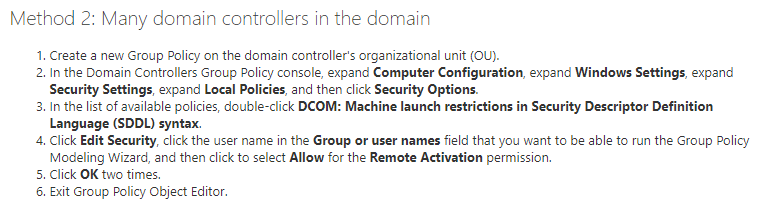
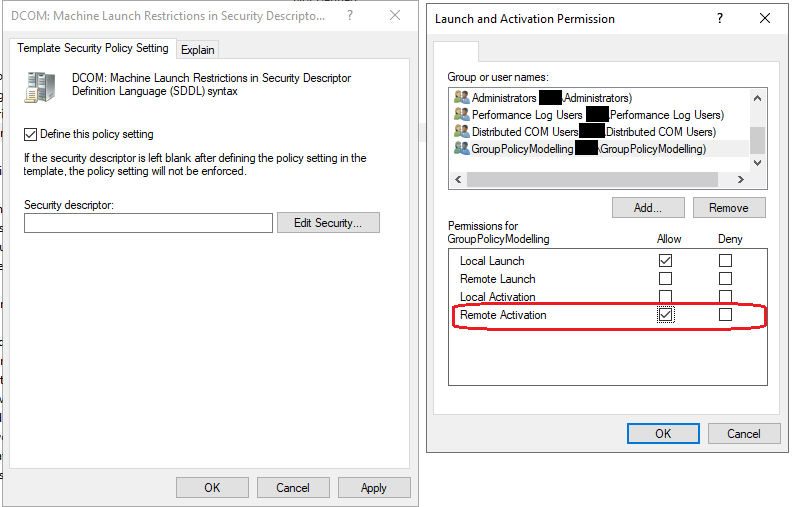
As you can see, Microsoft call out this exact issue, and also provide a solution for deploying the access to multiple domain controllers. Even better, it makes it straight forward to create your own delegation group and apply it to all domain controllers:

Once the GPO has been set, the setting cannot be controlled from Component Services, so ensure you capture current settings and ensure anything non-default is also added to your policy.

Hopefully this helps someone! Thanks for reading.

Converting WAV file to 8Khz, Mono, 16-Bit PCM

Recently I had a need to convert a WAV audio file from 22.05Khz, Mono, 8-Bit PCM to Khz, Mono, 16-Bit PCM so that a phone system I was configuring could interpret the audio files used for on-hold messaging.

There are a number of online services that can do this, but I don’t trust them and I wanted to work out how to do this with ffmpeg.

Since I was using my Windows box at the time and I needed to document this for others, I went with the Windows binary, but the same could be achieved on Linux or Mac.

  • The windows package for this software can be found here: https://www.gyan.dev/ffmpeg/builds/ffmpeg-git-essentials.7z
  • The download will be a .z7 file which will need to be extracted using 7-zip
  • Once extracted, browse to the bin folder, eg. \ffmpeg-2022-06-16-git-5242ede48d-essentials_build\bin
  • You will see a file called ffmpeg.exe. This is the file that performs the conversion via command line
  • Copy the path from file explorer so that you can browse to this location using command prompt or PowerShell
  • Open command prompt, start > run > cmd > enter
  • In command prompt, change to this directory , eg. cd C:\ffmpeg-2022-06-16-git-5242ede48d-essentials_build\bin
  • Now you will be in the bin directory and you can use ffmpeg
  • To check what type of file you are working with, run the following command C:\>ffmpeg.exe -i C:\sample.wav , eg. C:\ffmpeg-2022-06-16-git-5242ede48d-essentials_build\bin>ffmpeg.exe -i C:\users\<user>\downloads\sample.wav
  • An output will be given showing the encoding of the file.
  • If the file is already 8Khz, Mono, 16-Bit PCM then no changes are necessary and the file can be used.
  • If the file is something different to this, for example 22050 Hz, mono, u8, 176 kb/s, then it will need converting.
  • Keep in mind that by default ffmpeg will output information in Hz rather than Khz. In this example, 22050 Hz is 22.05 Khz (not what we want!).
  • The u8 listed in the example is an ffmpeg audio type. See this page to identify what audio types there are: https://trac.ffmpeg.org/wiki/audio%20types.
  • When we check u8 against audio types, it is listed as PCM unsigned 8-bit. Since this is not 16-bit, we need to convert the file.
  • The audio type for 8Khz, Mono, 16-Bit PCM is pcm_s16le.
  • To convert the file, we use the following command ffmpeg -i sample.wav -acodec pcm_s16le -ac 1 -ar 8000 output.wav, eg: ffmpeg.exe -i C:\users\<user>\downloads\sample.wav -acodec pcm_s16le -ac 1 -ar 8000 C:\users\<user>\downloads\output-16-bit.wav
  • Let’s break down the command. -i is for input file, -acodec specifies the audio codec, -ac sets the number of audio channels (mono), -ar sets the audio sampling frequency (8Khz)
  • If we run ffmpeg with no switches against the converted sample file again, we get 8000 Hz, mono, s16, 128 kb/s which is compatible with phone system I was working on.

Using the same method above, you could convert any number of source audio formats to other formats. Ffmpeg also has many other capabilities and can convert video too, it’s extremely flexible and robust. I recommend checking out the following man page https://manpages.org/ffmpeg.

Lastly, I looked back through my notes and realised I had used ffmpeg a few times in the past. One of these times was to convert a mp4 video file to webm for a HTML5 project, eg.

ffmpeg -i "C:\Users\<user>\Documents\Media1.mp4" -c:v libvpx-vp9 -crf 30 -b:v 0 -b:a 128k -c:a libopus C:\temp\output.webm

Thanks for reading.

Tail Windows Update Log Server 2016+ / Windows 10

Sometimes you have to patch mission critical Windows servers and you want to see what’s going on in the background. The modern windows update dialogue provides little verbosity, especially when compared to apt or yum in the Linux world.

In the Windows 7 / Server 2012 days I used to just tail C:\Windows\WindowsUpdate.log and watch the update process, especially when troubleshooting, or when updates were hanging on install. Nowadays if you open that file, you get the following message:

Windows Update logs are now generated using ETW (Event Tracing for Windows).
Please run the Get-WindowsUpdateLog PowerShell command to convert ETW traces into a readable WindowsUpdate.log.

For more information, please visit https://go.microsoft.com/fwlink/?LinkId=518345

As we can see, Microsoft have ditched text based logging in favour of ETW based logging. The link provided takes you to an article on Windows Update log files which lists out the various log files and what they do. If you want a concise log that is the same as what you got in Server 2012, then you have to run Get-WindowsUpdateLog which will spit out that familiar log file. This is no good in my situation, as that generated log file would be for the point in time it was generated, not a dynamically updated log file being written to during updates.

Since I don’t care really about the log contents and I just want to see some verbosity in the update process while its happening, I went through the other logs listed and came across the CBS log. CBS stands for Component based servicing and it provides output on update installation…. great!

When reviewing the log, I identified that the lines containing the strings Appl and FOD make up the majority of the hundreds, or thousands of entries, when running a tail. I filtered these out and it seems that what’s left is mostly operational logging to do with the update engine. Since my goal is to watch Windows Update progress to ensure something is happening, I wrote a quick PowerShell one liner:

Get-Content -Path $env:WinDir\Logs\CBS\CBS.log -Tail 10 -Wait | Select-String -Pattern 'Appl:|FOD:' -NotMatch

This command will get last 10 lines of the CBS log file, wait for new entries to be written, filter out Appl and FOD and write the results to the console.

If I want to get more details after patching is complete, I can always run Get-WindowsUpdateLog.

This may stop working at any point of course if Microsoft change something, but for now, it gives me peace knowing that the update stuck at 23% for 47 minutes is actually being installed and I’m not about to have a long night… or not too long anyway.

Thanks for reading.

Mitigating CVE-2022-30190 via Group Policy Preference Registry Keys

On 31 May 2022, Microsoft disclosed a remote code execution vulnerability in MSDT, the Microsoft Support Diagnostic Tool. This vulnerability, CVE-2022-30190, can be exploited by sending a URL to a vulnerable system. Successful exploitation allows an attacker to install programs, view or change data, or create new accounts in line with the victim’s user permissions. There are a number of proof of concept videos getting around including one that is a bit scary that uses the file previewer in Windows to trigger the vuln. As of 1/6/22 there is no patch from Microsoft.

There are two things you can do to mitigate the vulnerability:

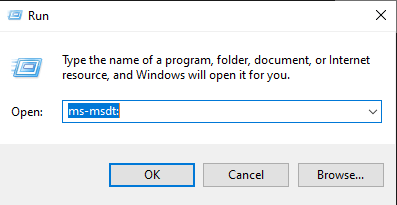
  1. Remove the ability for ms-msdt: URL’s to be executed
  2. Disable troubleshooting tools via group policy

Non-mitigated functionality

First, let’s see what happens before the mitigation:

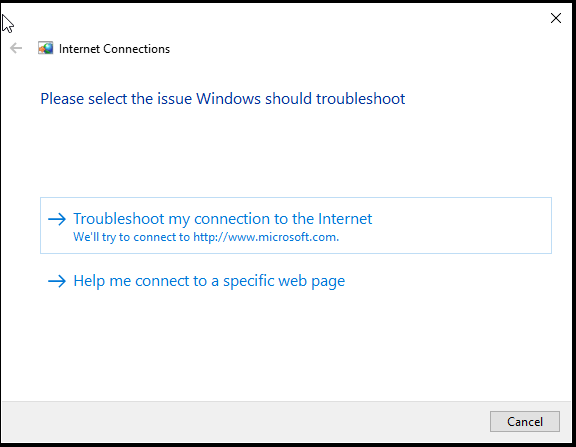
Launch the troubleshooter

Or run a troubleshooter app from the start menu

The troublershooter tool runs as expected

Remove ms-msdt functionality

To remove ms-msdt URL functionality, we need the URL to not associate with the %SystemRoot%\system32\msdt.exe binary, this is achieved by deleting the ms-msdt URL handler key from the registry.

Here is the key we are talking about

Since this will be patched at some point, we want a way to be able to revert the change so I captured the default keys and added these to their own collection and targeted them at a computer that doesn’t exist (targeting will be removed once we want the original keys restored):

Original reg keys

In table form for easy viewing / copying:

HiveKeyValue NameTypeValue Data
HKEY_CLASSES_ROOTms-msdtnone (default)REG_SZURL:ms-msdt
HKEY_CLASSES_ROOTms-msdtURL ProtocolREG_SZ
HKEY_CLASSES_ROOTms-msdtEditFlagsREG_DWORD00200000 (hex)
HKEY_CLASSES_ROOTms-msdt\shellnone (default)REG_SZ
HKEY_CLASSES_ROOTms-msdt\shell\opennone (default)REG_SZ
HKEY_CLASSES_ROOTms-msdt\shell\open\commandnone (default)REG_EXPAND_SZ“%SystemRoot%\system32\msdt.exe” %1

Targeting ‘enable-ms-msdt’ collection to a non existent computer for quick restore of keys once vuln is patched

I then created a collection with the root ms-msdt key that we will be deleting:

ms-msdt key to be deleted

Disable troubleshooting tools

To disable the troubleshooting tools, the following reg key was also deployed: (see link)

EnableDiagnostics reg key to be deployed

Mitigated functionality

Launch the troubleshooter

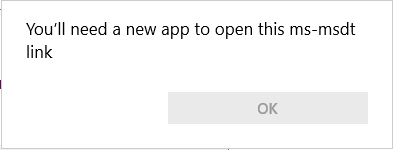
The URL no longer has a handler to execute

Or run a troubleshooter app from the start menu

Troubleshooter can’t execute as it has been restricted by GPO

Reverting the changes

To revert the changes, all we have to do now is remove the targeting from the enable-ms-msdt collection, delete the collection that is deleting the ms-msdt key and set the EnableDiagnostics reg key to binary 1 which enables users to run troubleshooters again. In my experience the troubleshooters are pretty useless anyway so maybe I’ll leave this disabled.

Thanks for reading.

How good is IrfanView!?

For those not in the know, IrfranView is a massively lightweight and powerful image viewer / manipulation program that has been around for decades. I first used it in the early 2000’s on Windows XP. It does only natively support Windows but can be ran on Linux and MacOS under Wine. It’s such a fantastic tool that I keep going back to it. It has an installer or a zip package making it handy to keep on a USB key or for systems where you can’t install software. It’s so lightweight and fast that it is a joy to use, especially when compared to the bloated modern software that we have to put up with nowadays.

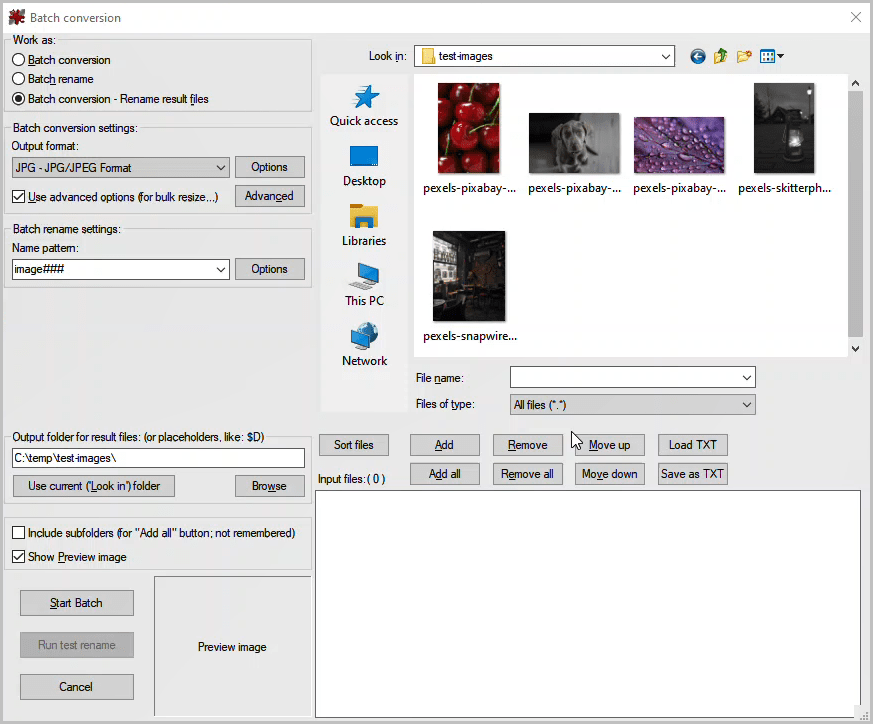
My absolute favourite feature of IrfanView is the batch image processor. It has many options making it super easy to convert batches of images. Any time I’m doing documentation, I pull out IrfanView to resize my in-line images to be small and web friendly before I upload them. The batch processing window, with the keyboard shortcut of the letter ‘b’ (love it), just opens up instantly and shows its magnificence. The simplicity of the file browser, image manipulation options and output configuration in the same window is brilliant and it makes it so user friendly to use.

To demonstrate how flexible and feature rich IfranView is, I took some creative-commons free to use images and adjusted the quality, resized then renamed them. For this demo, I am using a purple image with water droplets on a leaf to show the before and after. Here is the image in its original form with the following properties:

To get into the batch processing mode, open IrfanView and press the ‘b’ key which will open the window below. The first thing to do is select if you are converting, renaming or doing both. For me, it is usually Batch conversion – rename result files. After that is selected, use the file browser on the right hand side to find the folder containing your images.

Once the images are selected, click add to add them to the input files window. Next we will go through the output and rename settings.

In this example we are using JPG, but you could output to 22 other image formats including common formats like BMP, GIF, PDF, PNG, RAW and TIF. For each out put type, there are unique compression, encoding and colour settings dependent on the standard. Some output types like RAW need a plugin to be installed before you can use them. To demonstrate compressing the images, from the options window I set the file size to 1MB. This greys out the quality slider since you are compressing to a fixed file size.

Under advanced, you can choose from many different options including cropping, resizing, colour depth, rotation, brightness, contrast etc. The options are extensive and you can easily make complicated adjustments to your resulting image files. For this test I have chosen just to reduce the size by 50% of its original width and height and leave everything else default.

When you go into the batch rename settings, you can specify a name and number pattern as well as an increment and start point for your number, as well as some other advanced options.

Once you are happy with the settings you have chosen, from the main window select ‘Start Batch’ and the processing will begin.

Here is our test image 50% of its original size, compressed to 1MB with the following properties:

As you can see, IrfanView is extremely flexible and makes batch image processing fun!

You could also achieve the same with ImageMagick’s convert command, eg.

convert pexels-pixabay-459301.jpg -resize 50% -define jpeg:extent=1M image120.jpg

But that’s a blog for another day!

Thanks for reading.

Get Windows 10 Version Information

This morning I needed to quickly get Windows 10 version information for all workstations in a domain, so I wrote the below PowerShell script. This basic script only needed a few things to get the job done; a way to get all workstations in the domain, a way to only check computers that are online at the time, so the script doesn’t take too long with all the failures generated by offline systems, and the registry keys to determine the current OS build and minor version.

Import-Module -Name ActiveDirectory

$all_computers = Get-ADComputer -Filter * -SearchBase 'OU=computers,DC=somedomain,DC=com' | Select-Object -Property Name

$ExportPath = "$env:TEMP\$(Get-date -Format 'yyyyMMddhhmmss')_workstation_os_build_report.csv"

foreach ($c in $all_computers.name)

{

    if (Test-Connection -ComputerName $c -count 1 -Quiet ) {

    Write-Host "Processing $c" -ForegroundColor Cyan

    $CurrentBuild = ""
    $UBR = ""
    $OSVersion = ""
    $ComputerSystem = ""
    $props = ""
    $obj = ""

        $CurrentBuild = Invoke-Command -ComputerName $c -ScriptBlock { (Get-ItemProperty 'HKLM:\SOFTWARE\Microsoft\Windows NT\CurrentVersion' –Name CurrentBuild).CurrentBuild } -ErrorAction SilentlyContinue
        $UBR = Invoke-Command -ComputerName $c -ScriptBlock { (Get-ItemProperty 'HKLM:\SOFTWARE\Microsoft\Windows NT\CurrentVersion' –Name UBR).UBR } -ErrorAction SilentlyContinue
        $OSVersion = $CurrentBuild + "." + $UBR
        $ComputerSystem = Get-WmiObject -ComputerName $c -Class Win32_ComputerSystem -ErrorAction SilentlyContinue

       $props = [ordered]@{ 
        'HostName' = $ComputerSystem.Name;
        'OSVerion' = $OSVersion
        }
        $obj = New-Object -TypeName PSObject -Property $props

    Write-Output $obj | Export-Csv -Path $ExportPath -NoTypeInformation -Append -NoClobber -Force
    }
    else {
        Write-Host "$c is offline..." -ForegroundColor Green
    }

}
Write-Host "Output csv file is located here: `n `n $ExportPath `n" -ForegroundColor Yellow

Obviously there are a few issues with this script. It won’t get systems that are turned off, PowerShell remoting needs to be enabled/working, and in a large domain, it’s probably going to take a long time without some sort of parallelisation or a more efficient way of querying each host…. regardless, this was just a quick indicator for me of the general patch levels of systems in the domain.

Code also on my github here.

Thanks for reading.

Export Exchange Online mailbox and archive stats to CSV

If you’re like me, you’ve written variations of this script a hundred times. I decided to finally blog it and put it on git so that I could refer back. This script will get all exchange online mailboxes, check if an archive exists then dump all relevant information to CSV. It helps to know the quota of a mailbox and archive (dependent on your 365 license type), as well as the current usage, item count and if auto expanding archive is enabled. The script will report progress to the console as it goes letting you know what mailbox it’s currently processing and how many are left to process. Enjoy.

# Establish output path
$OutputPath = "$env:TEMP\$(Get-date -Format 'yyyyMMddhhmmss')_mailbox_report.csv"

# Establish result array variable
$Result=@()

# Get all mailboxes
$mailboxes = Get-Mailbox -ResultSize Unlimited

# Get total mailboxes and establish counter variable
$totalmbx = $mailboxes.Count
$i = 0 

# Loop through each mailbox and perform actions
$mailboxes | ForEach-Object {
    # Increment counter
    $i++
    # Add current mailbox to $mbx variable
    $mbx = $_
    # Reset variables for next loop
    $mba = $null
    $mbs = $null
    $mbasize = $null
    $mbssize = $null
    $MailboxAllocationInGB = $null
    $ArchiveAllocationInGB = $null
    
    # Write progress to host
    Write-Host "Processing $mbx" "$i out of $totalmbx completed"
    
    # Check if archive enabled, if so, get archive stats
    if ($mbx.ArchiveName){
        $mba = Get-MailboxStatistics -Archive $mbx.UserPrincipalName
        
        # Format archive size to GB with 2 decimal places
        if ($mba.TotalItemSize -ne $null){
            $mbasize = [math]::Round(($mba.TotalItemSize.ToString().Split('(')[1].Split(' ')[0].Replace(',','')/1GB),2)
            }
            else{
            $mbasize = 0 
        } 
    }

    # Get mailbox stats
    $mbs = Get-MailboxStatistics $mbx.UserPrincipalName
        
        # Format mailbox size to GB with 2 decimal places
        if ($mbs.TotalItemSize -ne $null){
            $mbssize = [math]::Round(($mbs.TotalItemSize.ToString().Split('(')[1].Split(' ')[0].Replace(',','')/1GB),2)
            }
            else{
            $mbssize = 0 
        } 

    # Get archive allocation (quota) and trim everything but the size in GB
    if ($mbx.ArchiveName){
        $ArchiveAllocationInGB = $mbx.ArchiveQuota.Split('G')
        $ArchiveAllocationInGB = $ArchiveAllocationInGB[0]
    }
    # Get mailbox allocation (quota) and trim everything but the size in GB
    $MailboxAllocationInGB = $mbx.ProhibitSendReceiveQuota.Split('G')
    $MailboxAllocationInGB = $MailboxAllocationInGB[0]

    # Create PSObject and store all relevant information for export
    $Result += New-Object -TypeName PSObject -Property $([ordered]@{ 
        UserName = $mbx.DisplayName
        UserPrincipalName = $mbx.UserPrincipalName
        MailboxType = $mbx.RecipientTypeDetails
        MailboxAllocationInGB = $MailboxAllocationInGB
        MailboxSizeInGB = $mbssize
        MailboxItemCount = if ($mbs.ItemCount) {$mbs.ItemCount} Else { $null}
        ArchiveEnabled = if ($mbx.ArchiveName) {"Enabled"} Else { "Disabled"}
        ArchiveName = $mbx.ArchiveName
        ArchiveAllocationInGB = if ($mbx.ArchiveName) {$ArchiveAllocationInGB} Else { $null} 
        ArchiveSizeInGB = $mbasize
        ArchiveItemCount = if ($mba.ItemCount) {$mba.ItemCount} Else { $null}
        AutoExpandingArchiveEnabled = $mbx.AutoExpandingArchiveEnabled
    })
}
# Export results to CSV
$Result | Export-CSV $OutputPath -NoTypeInformation -Encoding UTF8
Write-Host "Output csv file is located here: `n `n $OutputPath `n" -ForegroundColor Yellow

Code also on my github here.

Thanks for reading.

Get all AD group members with PowerShell

I was recently doing an audit of AD group memberships and since I find it easier to do this by filtering a spreadsheet, I needed to get all groups and their members out to a CSV. This basic script does the job and captures key properties like the name, DN and SID for the group as well as the name, DN, SID and object class for the member. This information would be enough to re-create a group structure and re-populate members if you needed to.

# Get All AD Group members for all groups

$groups = Get-ADGroup -Filter *

foreach ($group in $groups) {

$members = Get-ADGroupMember -Identity $group

    foreach ($member in $members) {

            [PSCustomObject]@{
            GroupName = $group.Name
            GroupDN = $group.DistinguishedName
            GroupSID = $group.SID
            MemberName = $member.name
            MemberDN = $member.DistinguishedName
            MemberSID = $member.SID
            MemberObjectClass = $member.ObjectClass
            } | Export-Csv -Path C:\temp\all_adgroupmembers_20220323_1.csv -NoClobber -NoTypeInformation -Append 
        }

}

Code also on my github here.

Thanks for reading.

Exchange Online message trace with more detail

Recently I needed to dig through some email using the Exchange Online PowerShell module and I found the default cmdlets a bit lacking in detail. Get-MessageTrace and Get-MessageTraceDetail show you enough, but sometimes you want to know more about the flow of an email from when it was received until it was ultimately delivered, marked as spam or quarantined. The graphical view at https://security.microsoft.com/quarantine is good and does give you pretty much everything you need, but I wanted to be able to see the spam scoring metrics and any additional details.

Get-MessageTrace gives us information about when the message was received, the sender and recipient addresses, the subject and what ultimately happened to the email. See the following screen shot where I’ve used a spam email that was captured in quarantine to demonstrate:

Get-MessageTrace -StartDate (get-date).AddDays(-10) -EndDate (get-date) -SenderAddress ds043_buh@edu.klgd.ru

Get-MessageTraceDetail give us more specifics about each event that occurred from when the message was received, to in this case, when it was quarantined.

Get-MessageTrace -StartDate (get-date).AddDays(-10) -EndDate (get-date) -SenderAddress ds043_buh@edu.klgd.ru | Get-MessageTraceDetail

But what happens if you want to know more about each event and scrutinise further? The answer is in the ‘data’ property of each event, which is an xml string. If I store the message trace detail in a variable, select an event and look the data property, I see something like the following:

$messageTraceDetail = Get-MessageTrace -StartDate (get-date).AddDays(-10) -EndDate (get-date) -SenderAddress ds043_buh@edu.klgd.ru | Get-MessageTraceDetail

$messageTraceDetail[0].Data

As we can see, this data is not very useful. To make it more useful, we can create an xml object from this xml string so that we can work with each property and do something with it.

$xml = [xml]$messageTraceDetail[0].Data
$xml.root.MEP

The data we are after lives under the root.MEP node of the xml object. Pathing to this exposes the properties in the event we have selected, which in this example is the receive event.

My goal was to expose the details of each event into a single object and have it output to the console for inspection. To do this, I needed to get the message, get message detail, loop through each event, convert the data property to xml, select the properties that were relevant and build a custom object.

As I started writing the script, I came across a few hurdles that needed addressing:

  • When adding properties to my custom object, some event properties were not showing any values. I realised that some event property values were strings and some integers.
  • Some property names were the same between events, so I needed a way to make these unique if they were going to be members of the same custom object.
  • Some properties legitimately had no data in their values since not all delivered mail is the same. For example, a spam email may populate a spam list property value, but a clean email would not. I needed to remove blank properties dynamically each time the script ran.
  • The [datetime] objects returned in some properties were set to UTC +0 and I wanted to see these properties in local time.
  • The ‘RecipientReference’ property was always blank (in all the emails I’ve checked), so I wanted to exclude this all together.
  • Not all data was available in the Get-MessageTraceDetail events data property, some of it was in the detail property and some was in the output from Get-MessageTrace.
  • I wanted to be prompted to enter a recipient or subject and filter on these if required.

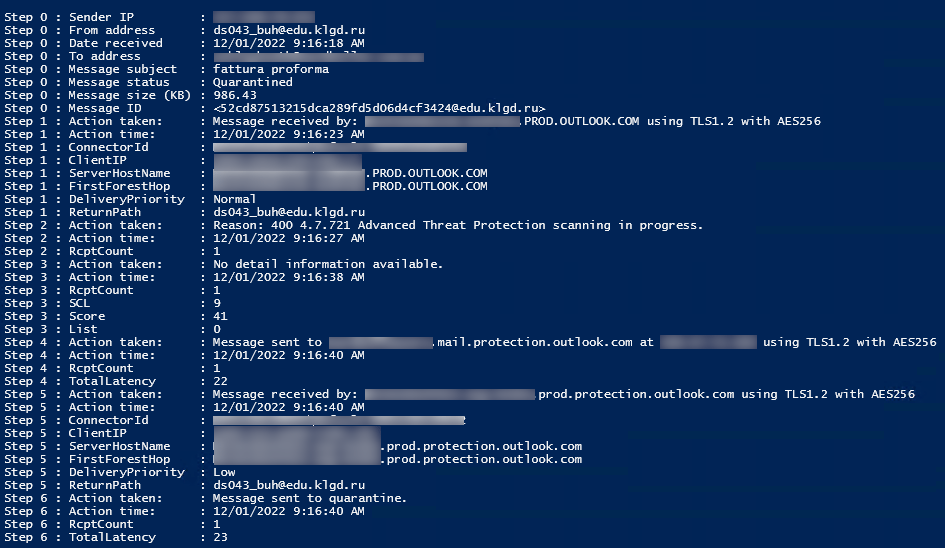
The below script is the result and the output looks something like this:

function Get-MessageTraceWithMoreDetail
{
<#
.Synopsis
   Trace mail messages with more detail
.DESCRIPTION
   This script traces mail messages and provides more detail exposing each event and outputs a single object for review.
   Start date and end date values are set to 10 days old and current date respectively, but you can overide if required.
.EXAMPLE
   Get-MessageTraceWithMoreDetail -startDate (Get-Date).AddDays(-3) -endDate $endDate = (Get-Date).AddDays(-1)
#>
    [CmdletBinding()]
    Param
    (
        [Parameter(Position=0)]
        [datetime]$startDate = (Get-Date).AddDays(-10),

        [Parameter(Position=1)]
        [datetime]$endDate = (Get-Date)
    )

try {

        $senderAddress = Read-Host -Prompt "What is the sender address or domain? eg. @domain.com or user@domain.com"

        Clear-Variable -Name recipientCheck,subjectCheck -ErrorAction SilentlyContinue

        while ($recipientCheck -notmatch "Y|N")
        {
            $recipientCheck = Read-Host -Prompt "Do you want to search using a recipient filter? [ Y | N ]"
        }

        while ($subjectCheck -notmatch "Y|N")
        {
            $subjectCheck = Read-Host -Prompt "Do you want to search using a subject filter? [ Y | N ]"
        }

        if ($subjectCheck -eq "Y" -and $recipientCheck -eq "Y") {
        
                $recipientFilter = Read-Host -Prompt "What is the recipients email address? eg. user@domain.com"
                $subjectFilter = Read-Host -Prompt "What words does the subject contain?"

                $messagesToReview = Get-MessageTrace -StartDate $startDate -EndDate $endDate -SenderAddress $senderAddress -RecipientAddress $recipientFilter | Where-Object -FilterScript {$_.Subject -like "*$subjectFilter*"}

        }
        elseif ($subjectCheck -eq "Y" -and $recipientCheck -eq "N") {

                $subjectFilter = Read-Host -Prompt "What words does the subject contain?"

                $messagesToReview = Get-MessageTrace -StartDate $startDate -EndDate $endDate -SenderAddress $senderAddress | Where-Object -FilterScript {$_.Subject -like "*$subjectFilter*"}

        }
        elseif ($subjectCheck -eq "N" -and $recipientCheck -eq "Y") {

                $recipientFilter = Read-Host -Prompt "What is the recipients email address? eg. user@domain.com"

                $messagesToReview = Get-MessageTrace -StartDate $startDate -EndDate $endDate -SenderAddress $senderAddress -RecipientAddress $recipientFilter

        }
        else {

               $messagesToReview = Get-MessageTrace -StartDate $startDate -EndDate $endDate -SenderAddress $senderAddress

        }

    Write-Host ""
    Write-Host ""
    Write-Host "============ Message Report $(get-date) ============" -ForegroundColor Cyan

    foreach ($message in $messagesToReview) {

                # Convert to local time
                $messageReceivedDate = Get-LocalTime -UTCTime $message.Received


                $customMessageObjectProps = [ordered]@{
                    'Step 0 : Sender IP' = $message.FromIP ;
                    'Step 0 : From address' = $message.SenderAddress ;
                    'Step 0 : Date received' = $messageReceivedDate ;
                    'Step 0 : To address' = $message.RecipientAddress ;
                    'Step 0 : Message subject' = $message.Subject ;
                    'Step 0 : Message status' = $message.Status ;
                    'Step 0 : Message size (KB)' = $([math]::Round(($message.Size / 1KB),2)) ;
                    'Step 0 : Message ID' = $message.MessageId}

                $customMessageObject = ""

                $customMessageObject = New-Object -TypeName PSObject -Property $customMessageObjectProps

                $messageDetail = $message | Get-MessageTraceDetail

                [int]$c = ""

                foreach ($event in $messageDetail) {

                    $xml = [xml]$event.Data
                    $eventReport = $xml.root.MEP

                    $c++
                    
                    # Convert to local time
                    $adjustedDate = Get-LocalTime -UTCTime $event.Date
             
                    $customMessageObject | Add-Member -NotePropertyName "Step $($c) : Action taken:" -NotePropertyValue $($event.Detail)
                    $customMessageObject | Add-Member -NotePropertyName "Step $($c) : Action time:" -NotePropertyValue $($adjustedDate.ToString())
            

                        foreach ($xmlProp in $eventReport) {

                            if ( 'string' -in (($eventReport | Get-Member).Name)) {
                
                                   if ($xmlProp.String -ne $null) {

                                        if ($xmlProp.Name -ne "RecipientReference") {
                        
                                        $customMessageObject | Add-Member -NotePropertyName "Step $($c) : $($xmlProp.Name)" -NotePropertyValue $xmlProp.string -Force

                                        }
                       
                                   }           
                
                            }
                            elseif ( 'integer' -in (($eventReport | Get-Member).Name)) {
                
                                   if ($xmlProp.integer -ne $null) {
                       
                                        $customMessageObject | Add-Member -NotePropertyName "Step $($c) : $($xmlProp.Name)" -NotePropertyValue $xmlProp.integer -Force
                       
                                   }           
                
                            }
                        }
                
                   }

        Write-Output $customMessageObject

        }

    }
    catch {

    Write-Host "Failed to perform message trace with more detail"
    Write-Host "$($_)"
    Write-Host "Line Number: $($_.InvocationInfo.ScriptLineNumber)"
    Write-Host "Offset: $($_.InvocationInfo.OffsetInLine)"
    Write-Host "Line: $($_.InvocationInfo.Line)"

    }

}


function Get-LocalTime($UTCTime)
{
$strCurrentTimeZone = (Get-WmiObject win32_timezone).StandardName
$TZ = [System.TimeZoneInfo]::FindSystemTimeZoneById($strCurrentTimeZone)
$LocalTime = [System.TimeZoneInfo]::ConvertTimeFromUtc($UTCTime, $TZ)
Return $LocalTime
}

Code is also on my GitHub.